

I recently noticed something unusual on my blog: some of my blog recent posts were not listed in the Rank Math sitemap XML.
At first, I found it confusing because the posts had already been published and were accessible normally on the blog. However, when I checked the sitemap generated by Rank Math SEO plugin for WordPress, the newer posts were missing.
If you are experiencing something similar, don’t panic. It may not mean that your posts are broken or that you need to recreate your sitemap.
In my case, I was able to fix the problem by rebuilding WordPress’s permalink rules and forcing Rank Math to refresh its sitemap cache.
Here are the two troubleshooting steps that worked for me.
What Was the Problem With Rank Math Sitemap XML?
After publishing some new blog posts, I expected them to appear in my Rank Math XML sitemap.
However, the sitemap was not showing the recent posts as expected.
This can be frustrating because an XML sitemap helps search engines discover URLs on your website. If you regularly publish new content, you want your sitemap to accurately reflect your current posts.
For example, if your blog has a sitemap such as:
https://www.example.com/post-sitemap.xml
you may expect newly published posts to be included automatically.
But in my case, the sitemap appeared to be showing older content while some of my recently published posts were missing.
Why Are Recent Posts Missing From the Rank Math Sitemap XML?
There can be different reasons why a recently published post doesn’t appear in a Rank Math sitemap.
Some possible causes include:
- Sitemap cache not being refreshed
- WordPress permalink or rewrite rules needing to be rebuilt
- Sitemap settings not updating correctly
- A post being excluded from the sitemap
- Posts being set to noindex
- SEO plugin conflicts
- Caching or optimization plugins serving an old version of the sitemap
- Server-side caching
- Incorrect Rank Math sitemap settings
Therefore, before assuming that Rank Math is completely broken, it is worth trying some basic troubleshooting steps.
In my case, these two steps solved the problem.
1. Flush WordPress Permalink Rules
The first thing I did was refresh my WordPress permalink settings.
You don’t necessarily need to change your permalink structure.
Simply go to:
WordPress Dashboard → Settings → Permalinks
Then click Save Changes.
You can leave your existing permalink structure exactly as it is.
Why does this help?
WordPress uses rewrite rules to determine how different URLs and requests are handled.
Saving the Permalinks settings forces WordPress to rebuild those rewrite rules.
In some situations, this can help resolve unexpected URL-related problems, including issues involving dynamically generated content such as XML sitemaps.
So, if your recent posts are not appearing in your Rank Math sitemap, this is a simple troubleshooting step worth trying.
Important
Don’t change your permalink structure just for this troubleshooting step.
If your current permalink structure is working correctly, simply go to Settings → Permalinks and click Save Changes.
2. Force Rank Math to Refresh the Sitemap Cache
The second step I used was to force Rank Math to regenerate or refresh its sitemap cache.
Go to:
WordPress Dashboard → Rank Math SEO → Sitemap Settings → General
Look for the Links Per Sitemap setting.
For example, if it is currently set to:
200
change it temporarily to:
201
Then click Save Changes.
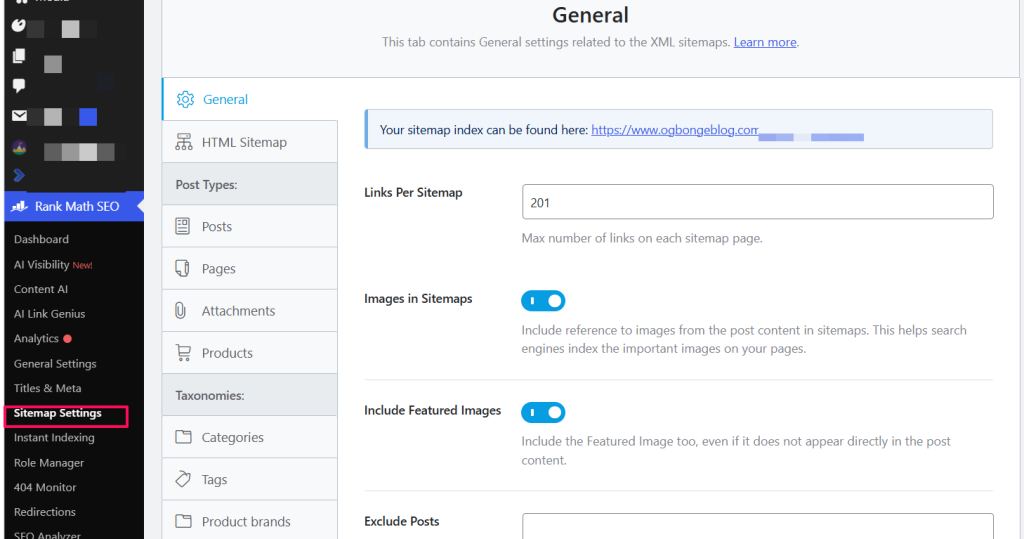
The idea is to make a small change to the sitemap configuration so Rank Math is prompted to refresh the sitemap.
After saving the setting, check your sitemap again.
For example:
https://www.example.com/post-sitemap.xml
You may need to refresh the browser or clear your browser cache before checking the sitemap again.
Why Changing Links Per Sitemap Can Help
The number of links per sitemap controls how many URLs Rank Math places in each sitemap file.
For example, depending on your settings and the number of posts on your website, Rank Math may generate files such as:
- post-sitemap.xml
- post-sitemap2.xml
- post-sitemap3.xml
Changing the Links Per Sitemap value and saving the settings can trigger Rank Math to rebuild its sitemap data.
This was one of the troubleshooting steps that worked for me.
Check Your Recent Posts Again
After completing the two steps above, I went back to the Rank Math sitemap and checked my recent posts again.
The missing posts were now listed.
So, if you are experiencing the same issue, I recommend checking the sitemap again after:
- Saving your WordPress permalink settings.
- Changing the Rank Math Links Per Sitemap number.
- Saving your Rank Math sitemap settings.
- Refreshing the sitemap page.
What If Your Recent Post Is Still Missing In Rank Math Sitemap XML?
If your recent posts are still not appearing in the Rank Math sitemap after trying the two fixes above, don’t stop there.
There are a few other things you should check.
Check Whether the Post Is Set to Noindex
A post that has been configured with a noindex directive may not be included in your sitemap.
Edit the affected post and check its Rank Math SEO settings.
Look at the Advanced settings and make sure the post isn’t accidentally configured as No Index.
For a normal blog post that you want search engines to index, you generally want it to be indexable.
Check Rank Math Sitemap Settings
Go to:
Rank Math SEO → Sitemap Settings
Check the settings for your posts.
Make sure the relevant post type is included in the sitemap.
For example, if you are troubleshooting normal blog posts, check the Posts sitemap settings.
Also make sure you haven’t accidentally configured Rank Math to exclude certain posts or post categories.
Check Your WordPress Post Status
Make sure the affected article is actually published.
A post that is:
- Draft
- Pending Review
- Scheduled
- Private
may not appear in the public sitemap in the same way as a normal published post.
Check the post’s status from your WordPress Dashboard.
Clear Your Website Cache
If you use a caching plugin, your website may be displaying an older cached version of the sitemap.
Depending on your setup, clear the cache from your caching plugin.
Also check whether your hosting provider has server-level caching enabled.
If you use a CDN, you may also need to clear its cache.
After clearing the cache, open the sitemap again and check whether the missing posts now appear.
Don’t Forget About Multiple Sitemap Files
Another thing to remember is that Rank Math may split your sitemap into multiple files.
For example, instead of putting every post URL inside:
post-sitemap.xml
you may have:
post-sitemap.xml
post-sitemap2.xml
post-sitemap3.xml
and so on.
This depends on the number of URLs and your Links Per Sitemap setting.
Therefore, don’t automatically assume that a post is missing just because you didn’t find it in the first sitemap file.
Check the sitemap index to see whether there are additional sitemap files.
Check Your Sitemap Index
Your Rank Math sitemap index is usually available at:
https://www.example.com/sitemap_index.xml
Replace example.com with your own domain name.
The sitemap index should show the different sitemap files generated for your website.
For example, you may see:
- post-sitemap.xml
- page-sitemap.xml
- category-sitemap.xml
- tag-sitemap.xml
depending on your website and Rank Math configuration.
Click the relevant post sitemap and search for the URL of your recently published article.
Should You Resubmit the Sitemap to Google?
If you have already submitted your sitemap index to Google Search Console, you normally don’t need to submit it again every time you publish a new post.
Google can revisit the sitemap and discover changes.
However, if you have just fixed a sitemap problem and want to make sure Google can access the updated sitemap, you can check it in Google Search Console.
Go to the Sitemaps section and check the status of your sitemap.
You can also inspect the individual post URL using Google’s URL Inspection tool.
Remember that appearing in an XML sitemap does not guarantee that Google will index the page or rank it in search results.
The sitemap primarily helps search engines discover URLs and understand which URLs you consider important.
Don’t Confuse Sitemap Problems With Indexing Problems
This is important.
A post not appearing in your sitemap and a post not appearing in Google search results are two different problems.
For example, your article could be:
Published → Included in sitemap → Discovered by Google → Not yet indexed
So, seeing a URL in your sitemap doesn’t automatically mean it will rank.
Likewise, a temporary sitemap issue doesn’t necessarily mean Google has stopped indexing your website.
If you are troubleshooting SEO problems, identify the exact issue before making major changes.
The Two Fixes That Worked for Me
In my case, I didn’t need to reinstall Rank Math or make major changes to my website.
The solution was simply:
Fix 1: Save WordPress Permalinks
Go to:
Settings → Permalinks → Save Changes
without changing your existing permalink structure.
Fix 2: Refresh Rank Math Sitemap
Go to:
Rank Math SEO → Sitemap Settings → General
Change the Links Per Sitemap value.
For example:
200 → 201
Then click Save Changes.
After doing these two things, I checked my Rank Math sitemap again and my recent posts were listed.
Final Thoughts
If your recent blog posts are not listed in the Rank Math sitemap XML, don’t immediately assume that something is seriously wrong with your WordPress website.
Start with these simple troubleshooting steps:
- Flush your WordPress permalink rules by going to Settings → Permalinks and clicking Save Changes.
- Force a Rank Math sitemap refresh by changing the Links Per Sitemap number and saving the settings.
- Check whether your post is set to noindex.
- Check your Rank Math sitemap settings.
- Clear your WordPress, hosting or CDN cache.
- Check your sitemap index for additional sitemap files.
- Verify the sitemap and affected URLs in Google Search Console.
For me, the first two steps were enough to get my recent posts showing in the Rank Math sitemap again.
So, if you are facing the same issue, try these simple fixes before you start making major changes to your WordPress SEO setup.
Frequently Asked Questions
Why are my new posts not showing in Rank Math sitemap?
Your sitemap may be cached or Rank Math may not have refreshed its sitemap data. WordPress permalink rules, caching, sitemap settings, post exclusions and noindex settings can also be responsible.
How do I refresh my Rank Math sitemap?
One troubleshooting method is to go to Rank Math SEO → Sitemap Settings → General, change the Links Per Sitemap value, and save the settings. For example, change 200 to 201.
How do I refresh WordPress permalink rules?
Go to WordPress Dashboard → Settings → Permalinks and click Save Changes without changing your existing permalink structure.
Does a post need to be in the sitemap to be indexed by Google?
Not necessarily. A sitemap helps search engines discover URLs, but being included in a sitemap doesn’t guarantee indexing or ranking.
Should I resubmit my sitemap every time I publish a new post?
Generally, no. If your sitemap is already submitted correctly, search engines can revisit it. You should first make sure the sitemap is accessible and updating correctly.
Why does Rank Math create multiple post sitemap files?
Rank Math can split URLs into multiple sitemap files based on the Links Per Sitemap setting and the number of URLs on your website.
What should I do if my recent posts are still missing?
Check your post’s indexability, Rank Math sitemap settings, post status, caching configuration and the sitemap index. If necessary, use Google Search Console to inspect the affected URL and sitemap.



Leave a Reply