

Recently, I ran into a frustrating issue after updating my Fluent Forms plugin on WordPress.
Everything was working perfectly before the update. But immediately after updating, I noticed something strange.
The phone numbers submitted by leads were no longer being saved in international format.
And that was a serious problem.
Let me explain.
The Problem: No Country Code in Saved Phone Numbers
On my landing page, I use Fluent Forms plugin to collect leads.
The phone number field was properly configured:
- ✅ Auto Country Select enabled
- ✅ International format expected
- ✅ Required field
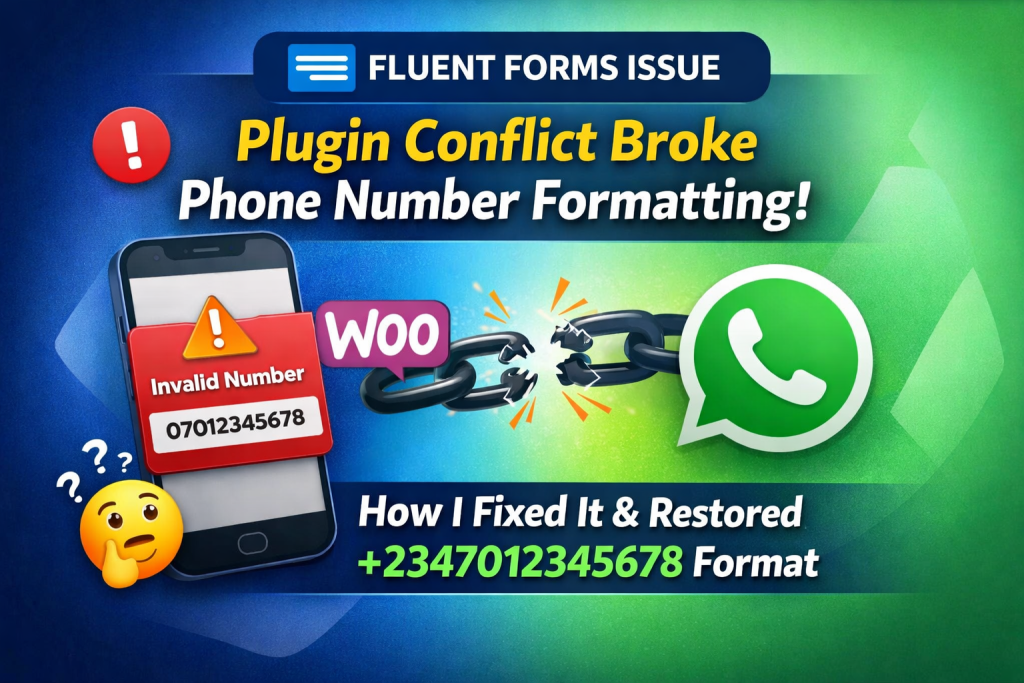
However, after the update, the phone numbers were being saved like this:
07012345678
Instead of:
+2347012345678
Two major issues here:
- ❌ No country code
- ❌ Local format instead of international format
And for WhatsApp automation to work properly, the number must:
- Include the country code (e.g., +234 for Nigeria)
- Have no spaces
- Be in international format
Without this, the automated WhatsApp message will fail.
Why This Was a Big Issue for My Marketing System
As someone who builds digital marketing systems and automation funnels, this wasn’t just a small formatting issue.
The phone numbers are automatically pushed into a WhatsApp automation system.
If the number doesn’t contain the country code:
- The API won’t recognize it
- The message won’t send
- The lead goes cold
That means:
- Wasted ad spend
- Broken automation
- Lost potential sales
So I had to fix it fast.
First Step: Checked Fluent Forms Settings
Naturally, I assumed something changed in Fluent Forms after the update.
I checked:
- Fluent Forms Phone Number field settings
- Auto Country Select option (enabled)
- Validation option (enabled)
Everything looked okay.
Still, the numbers were not saving in international format.
That’s when I suspected something deeper.
The Real Culprit: Plugin Conflict
After some back and forth troubleshooting, I discovered the real cause.
It wasn’t Fluent Forms.
It was a plugin conflict.
The plugin causing the issue was:
👉 Phone Validator for WooCommerce
This plugin was interfering with how Fluent Forms handled phone number formatting internally.
Even though it was meant for WooCommerce validation, it was affecting global phone field behavior across the site.
Classic WordPress plugin conflict.
How I Confirmed the Conflict
Here’s what I did:
- Deactivated all non-essential plugins
- Tested the form submission
- Phone numbers saved correctly with country code
- Reactivated plugins one by one
- Issue returned immediately after activating Phone Validator for WooCommerce
Boom 💥
Conflict confirmed.
The Fix
Simple:
I deactivated Phone Validator for WooCommerce.
Immediately:
- Phone numbers started saving in international format
- +234 was properly attached
- No unwanted spaces
- WhatsApp automation resumed working perfectly
Problem solved.
Final Thoughts
If your Fluent Forms phone numbers are not saving in international format after an update:
Don’t panic.
Check for plugin conflicts — especially any plugin that:
- Validates phone numbers
- Modifies WooCommerce fields
- Adds input masks
- Alters frontend validation
In my case, deactivating Phone Validator for WooCommerce fixed everything instantly.
And my WhatsApp automation system is now working perfectly again.
If you’re building automation funnels, lead generation systems, or WhatsApp marketing flows, this is something you should watch out for.
Sometimes, the smallest plugin can silently break your entire marketing engine.


Leave a Reply